Actito
Connect Apple Wallet and Google Wallet to Actito (CRM / marketing automation) with The Wallet Crew. Create, update, and notify wallet passes from Actito scenarios.
This integration connects Actito scenarios to Apple Wallet and Google Wallet through The Wallet Crew.

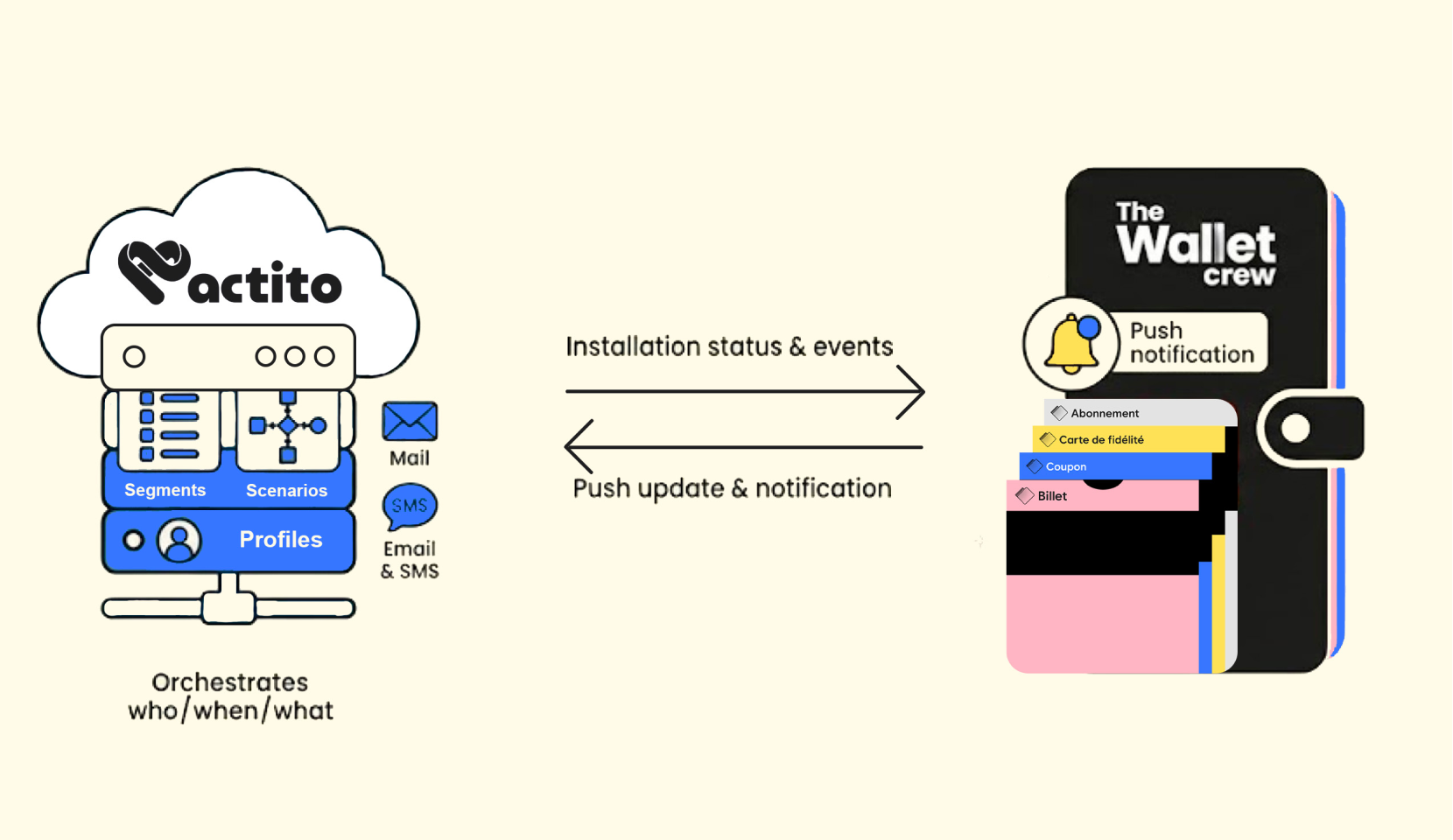
Actito is where segmentation, personalization, and customer journey orchestration happen. The Wallet Crew turns those journeys into a wallet pass that stays visible and useful.
This is more than “one more channel” next to email, SMS, and app push. It is a way to put the right information in the customer’s pocket, exactly when needed. For teams looking at how to connect Apple Wallet and Google Wallet to Actito CRM, this integration is the practical answer.
This becomes essential for loyalty, membership, gift cards, and offers.
What this unlocks
A persistent touchpoint. The pass lives in Apple Wallet or Google Wallet.
Real-time utility. The pass is updated when the customer situation changes.
Less friction. No app install required to deliver value.
Better orchestration. Actito scenarios automate wallet moments.
Stronger targeting. Wallet events feed back into Actito for smarter timing.
Thanks to The Wallet Crew connectors and its multi pass data provider architecture, wallet scenarios can be orchestrated from Actito while other pass data providers keep contributing. This gives the best of both worlds. The Wallet Crew can display information from all systems (Cegid, Secutix, etc) on the same pass and merge them, without sync issues.
What this integration does
Connect Actito to The Wallet Crew to:
Update passes from Actito scenarios (Journey Builder custom actions). Keep loyalty points, tier, coupons, balance, or store info up to date.
Trigger wallet notifications (push/messages) for a given pass from Actito scenarios. Nudge at the right moment without relying only on email open rates.
Sync Actito profile changes into The Wallet Crew (webhooks). Keep wallet content aligned with consent, preferences, and profile data.
Sync The Wallet Crew events back to Actito (webhooks). Track events like customer creation and wallet installation status.
Usage
Send a push notification
Use the neostore send message custom activity inside an Actito scenario.
It sends a push-style wallet message to the customer’s pass. On Apple Wallet, it appears on the lock screen. On Google Wallet, it is displayed on the pass.
For more details about wallet notifications, see Push notifications.
Use it for time-sensitive moments. Keep it rare.
New profile & profile update synchronization
When an Actito profile is created or updated, the connector automatically refreshes the customer’s wallet pass.
This keeps the pass aligned with the latest profile data, without building extra “update pass” branches in every scenario.
Wallet installation status synchronization
When a customer installs or uninstalls a pass, the connector syncs that status back to Actito.
Actito stores this in the neostore_wallets table. Use it as a deterministic signal for segmentation and scenario branching.
Install and uninstall events can also trigger follow-ups or rewards.
Pass Data Provider
Use Actito as a data source for the pass.
This lets The Wallet Crew display Actito profile attributes on the pass, like first name, last name, tier label, or any custom field stored in Actito.
Setup
The Wallet Crew Configuration
Configure general settings
Open the Actito connector settings in The Wallet Crew back-office.

Fill in the form with the following information:
Server
URL of the Actito server
API Key
Actito API key that lets The Wallet Crew access the Actito environment.
Entity
The name of the environment (license name) within Actito
Profile Table Name
Name of the Actito table that stores profiles (customer information)
Actito External Identifier
Name of the column that contains the customer identifier. This column lets The Wallet Crew bind a pass to a specific customer.
Pass external Identifier
Name of the external identifier key within The Wallet Crew.
Get these values from Actito (API settings) and from the Actito data model (table + identifier column).
Configure wallet template
To show Actito messages on the pass, add a field in the pass template.
When a message is sent, the connector stores it in additionalData.actito_message.
Add a back field with the following settings:
Label
Message
Value
{{ additionalData.actito_message }}
Change Message
%@

Add a back field with the following settings:
Header
Message
Value
{{ additionalData.actito_message }}

Once setup is complete, the connector automatically creates the required tables and custom actions in Actito.
FAQ
Last updated

