> For the complete documentation index, see [llms.txt](https://docs.thewalletcrew.io/llms.txt). Markdown versions of documentation pages are available by appending `.md` to page URLs; this page is available as [Markdown](https://docs.thewalletcrew.io/connectors/pos/adyen.md).

# Adyen

Configure Adyen terminals to display a The Wallet Crew QR code and to trigger Apple Wallet loyalty card notifications through beacons.

## Displaying a QR Code on an Adyen Terminal

An Adyen terminal can be configured to display a QR code by following these steps.

#### Example

<div data-with-frame="true"><figure><img src="https://3852727835-files.gitbook.io/~/files/v0/b/gitbook-x-prod.appspot.com/o/spaces%2FlP7d71aYydav6e0pRkxc%2Fuploads%2Fgit-blob-3b761182c978bb9c1a3e7fb14a952c41d59d5098%2Fdocumentation-adyen-example.png?alt=media" alt="Adyen payment terminal screen displaying a QR code in place of the merchant logo" width="375"><figcaption><p>Check that the QR code fills the logo area and stays scannable at terminal size.</p></figcaption></figure></div>

### Prerequisites

* Ensure access to the [Adyen Customer Area](https://ca-live.adyen.com/ca/ca/overview/default.shtml) is available.
* Obtain the QR code image specific to the store from The Wallet Crew administration console (details below).

### Steps to Configure the QR Code on the Adyen Terminal

1. **Log in to the Adyen Customer Area**\
   Access the Adyen account using the following link:\
   [Adyen Customer Area](https://ca-live.adyen.com/ca/ca/overview/default.shtml){target="\_blank"}.
2. **Navigate to Terminal Settings**
   * Go to the **`In-person Payments`** section.
   * Select **`Terminal Settings`** from the menu.
   * Then **`Customization`** menu
3. **Download the QR Code from The Wallet Crew**
   * To obtain the QR code specific to the store, access The Wallet Crew administration console here:\
     [Redirects - The Wallet Crew Administration Console](https://admin.thewalletcrew.io/tenant/~/tools/redirects)
   * Download the QR code image and save it in an accessible location.
4. **Upload the QR Code Image**
   * Locate the **`Logo`** section in the terminal settings.
   * Upload the image of the QR code.

{% hint style="info" %}
The size requirements for the QR code image depend on the specific terminal model. Refer to the Adyen documentation for exact dimensions.
{% endhint %}

<figure><img src="https://3852727835-files.gitbook.io/~/files/v0/b/gitbook-x-prod.appspot.com/o/spaces%2FlP7d71aYydav6e0pRkxc%2Fuploads%2Fgit-blob-78829127b65c2209a2a8e43574929a6480e467b7%2Fdocumentation-adyen-size-requirements-qr-code-image-depend-specific.png?alt=media" alt="Adyen terminal customization screen showing the logo upload area and its size requirements"><figcaption><p>Confirm the uploaded image matches the size expected by the terminal model in use.</p></figcaption></figure>

## How to Set Up Adyen Terminals with Apple Wallet Loyalty Card Notifications Using Beacon Technology

With **Beacon Technology** ([learn more from Apple's documentation](https://developer.apple.com/ibeacon/)), Adyen terminals can send notifications to nearby iPhones that hold an Apple Wallet loyalty card when they are within range (e.g., 50 cm). The setup is described below.

#### Enhancing Loyalty Card Notifications with Adyen and Apple Wallet

Adyen terminals equipped with beacon technology allow seamless engagement with customers by delivering real-time notifications to their Apple Wallet loyalty cards. This integration is a powerful tool for businesses to enhance customer experience and boost loyalty program engagement.

**Key Benefits:**

* **Real-Time Engagement:** Notify customers about loyalty benefits or promotional offers as they approach the terminal.
* **Seamless Integration:** Works directly with Apple Wallet and Adyen terminals.
* **Customizable Notifications:** Tailor messages to match the brand tone and context.

#### Example

<figure><img src="https://3852727835-files.gitbook.io/~/files/v0/b/gitbook-x-prod.appspot.com/o/spaces%2FlP7d71aYydav6e0pRkxc%2Fuploads%2Fgit-blob-a8cdcdccb379b9ed811e6eb8419d2e157f22d6a9%2Fdocumentation-adyen-example-2.png?alt=media" alt="iPhone lock screen showing a beacon-triggered Apple Wallet loyalty card notification"><figcaption><p>This is what the customer sees when the phone comes within range of the terminal.</p></figcaption></figure>

### Steps to Configure Beacon Technology

**1. Log in to the Adyen Customer Area**

* Access the Adyen account: [Adyen Customer Area](https://ca-live.adyen.com/ca/ca/overview/default.shtml){target="\_blank"}.

**2. Enable Beacons in Adyen Terminal Settings**

* Navigate to the **`In-person Payments`** section.
* Select **`Terminal Settings`** and then go to the **`Connectivity`** tab.
* In the **`Beacon`** section:
  * **Enable Beacons** by toggling the option.
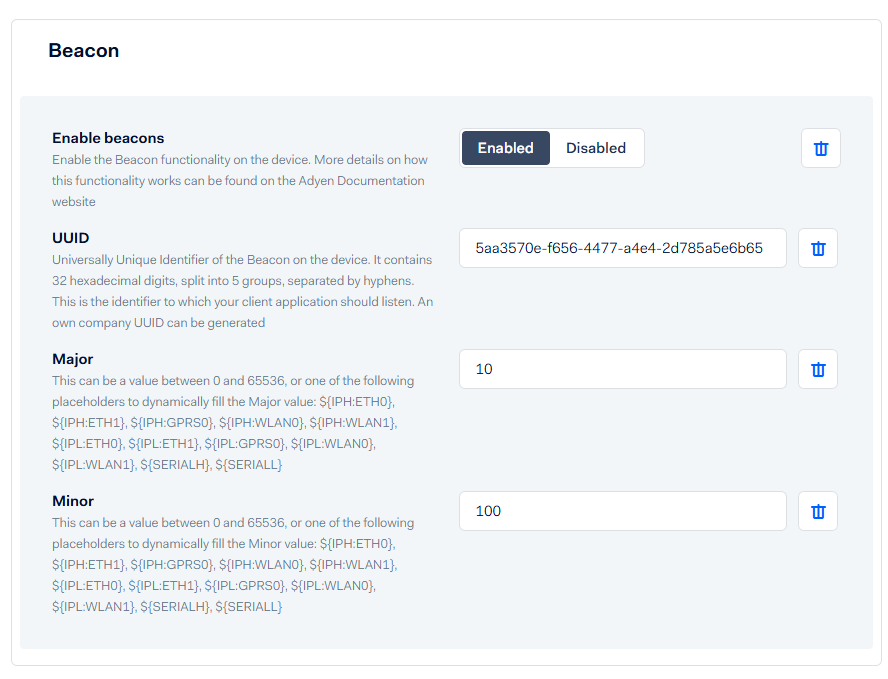
  * Specify a unique **UUID**. A new one can be generated with the reset button from The Wallet Crew, or an existing beacon configuration value can be reused.
  * Set the **Major** and **Minor** values (any number between 0 and 65535).

<figure><img src="https://3852727835-files.gitbook.io/~/files/v0/b/gitbook-x-prod.appspot.com/o/spaces%2FlP7d71aYydav6e0pRkxc%2Fuploads%2Fgit-blob-dbd5aca9300b23370f4309ea4e4163df270d3765%2Fdocumentation-adyen-major.png?alt=media" alt="Adyen beacon settings showing the UUID, Major, and Minor fields"><figcaption><p>Note the UUID, Major, and Minor values here: they must be repeated identically in The Wallet Crew.</p></figcaption></figure>

**3. Configure Beacon Settings in The Wallet Crew**

* Log in to the [The Wallet Crew Administration Console](https://admin.neostore.cloud/tenant/~/passTypes).
* Edit a **Template**:
  * Open the **`Apple`** tab.
  * Navigate to the **`Beacon`** section.
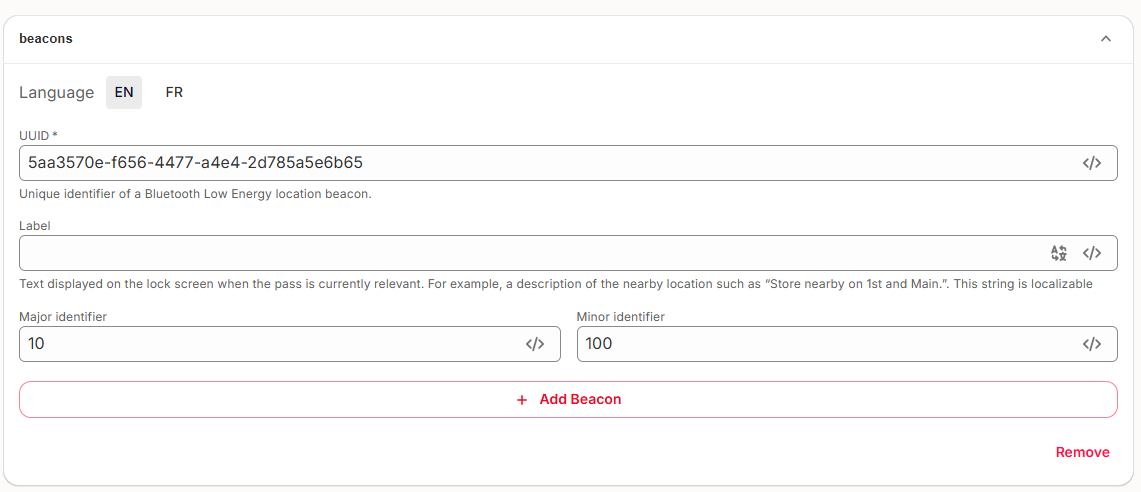
  * Enter the same **UUID**, **Major**, and **Minor** values configured in the Adyen administration console.
  * Specify a **Label**. This is the text that will be displayed on the iPhone notification.

<figure><img src="https://3852727835-files.gitbook.io/~/files/v0/b/gitbook-x-prod.appspot.com/o/spaces%2FlP7d71aYydav6e0pRkxc%2Fuploads%2Fgit-blob-53656abd32d17383269545bce6596d761259b357%2Fdocumentation-adyen-label.png?alt=media" alt="Beacon section of a pass template in The Wallet Crew, with UUID, Major, Minor, and Label fields"><figcaption><p>Check that these values match the Adyen terminal exactly, and that the label reads well on a lock screen.</p></figcaption></figure>

**4. Test the Beacon Setup**

When an iPhone is within range (approximately 50 cm) of the configured Adyen terminal, a notification should appear displaying the label text.

> **Pro Tip:** If the notification does not appear as expected, ensure the beacon settings are consistent across the Adyen and The Wallet Crew configurations. Use a testing environment to refine configurations before deploying to production.

### Optimizing Notifications for Apple Wallet Loyalty Cards

* **Personalize the Message:** Ensure that the notification text resonates with the audience. Use promotional hooks or loyalty rewards to encourage engagement.
* **Leverage Analytics:** Use Adyen’s reporting tools to monitor engagement and refine strategies based on customer interactions.
* **Stay Updated:** Regularly update the beacon settings to reflect seasonal campaigns or business changes.

### Additional Notes

* Testing range and compatibility may vary depending on the environment and iPhone model. Adjust settings if necessary.
* Refer to [Apple’s Beacon Technology Documentation](https://developer.apple.com/ibeacon/) for advanced customization and troubleshooting.

By utilizing Adyen terminals with Apple Wallet loyalty cards and beacon technology, businesses can deliver unparalleled customer experiences, driving repeat visits and increasing loyalty program participation.


---

# Agent Instructions
This documentation is published with GitBook. GitBook is the documentation platform designed so that both humans and AI agents can read, navigate, and reason over technical content effectively. Learn more at gitbook.com.

## Querying This Documentation
If you need additional information that is not directly available in this page, you can query the documentation dynamically by asking a question.

Perform an HTTP GET request on the current page URL with the `ask` query parameter, and the optional `goal` query parameter:

```
GET https://docs.thewalletcrew.io/connectors/pos/adyen.md?ask=<question>&goal=<endgoal>
```

`ask` is the immediate question: it should be specific, self-contained, and written in natural language.
`goal` is optional and describes the broader end goal you are ultimately trying to accomplish on behalf of the user. GitBook uses it to tailor the answer towards what is most useful for that goal.

The response will contain a direct answer to the question and relevant excerpts and sources from the documentation.

Use this mechanism when the answer is not explicitly present in the current page, you need clarification or additional context, or you want to retrieve related documentation sections.