This documentation is currently under development. Certain sections are not yet complete and will be added shortly.
For the complete documentation index, see llms.txt. This page is also available as Markdown.

Distribution

Deliver Secutix tickets to Apple Wallet and Google Wallet via email links or embedded “Add to Wallet” buttons.

Distribution is how buyers add Secutix tickets to Apple Wallet and Google Wallet. A hosted download link can be shared, or an Add to Wallet button can be embedded. Place the CTA where buyers already are.

Common touchpoints:

  • Confirmation email (hosted link)

  • Secutix ticket shop order confirmation page (embedded button)

  • The brand website (embedded button)

  • SMS link (useful few hours before the show)

Most deployments combine multiple channels: Hosted download page in transactional emails for reliability and embedded “Add to Wallet” button (SDK) for instant saves in the ticket shop or owned pages.

Hosted download page (send via email)

This is the simplest path for buyers. It works well when Secutix already sends a confirmation email after purchase.

This page does not require authentication. Buyers can open the email a few minutes before the show and add tickets to their wallet. They do not need to remember their ticket shop login and password.

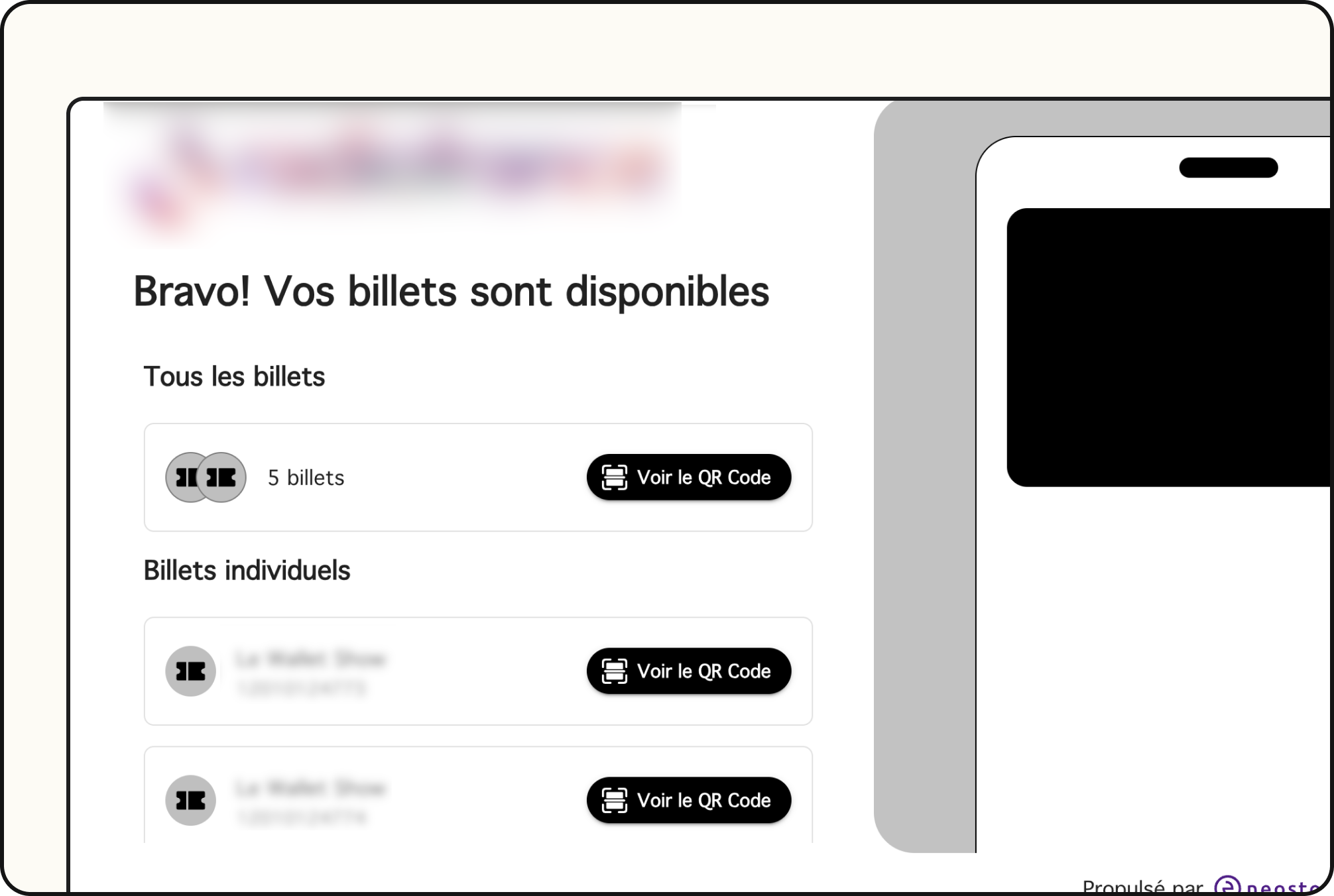
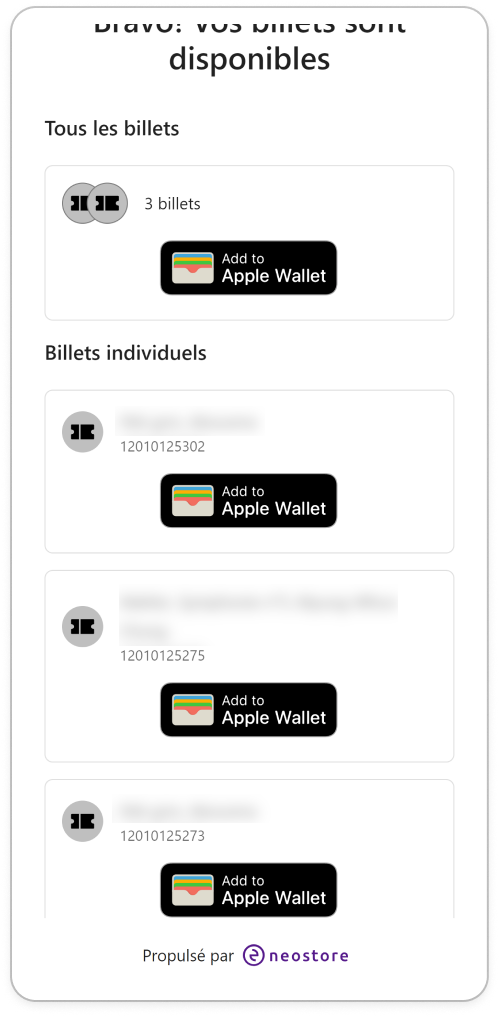
The Wallet Crew exposes an order page optimized for mobile. On iOS, it shows the Apple Wallet button. On Android, it shows the Google Wallet button. On desktop, it falls back to a QR code.

The page lists every ticket in the order. Buyers can add tickets from the same link, without re-opening the email.

Hosted download page on iOS showing the ticket list and Apple Wallet button.
Hosted download page on iOS.
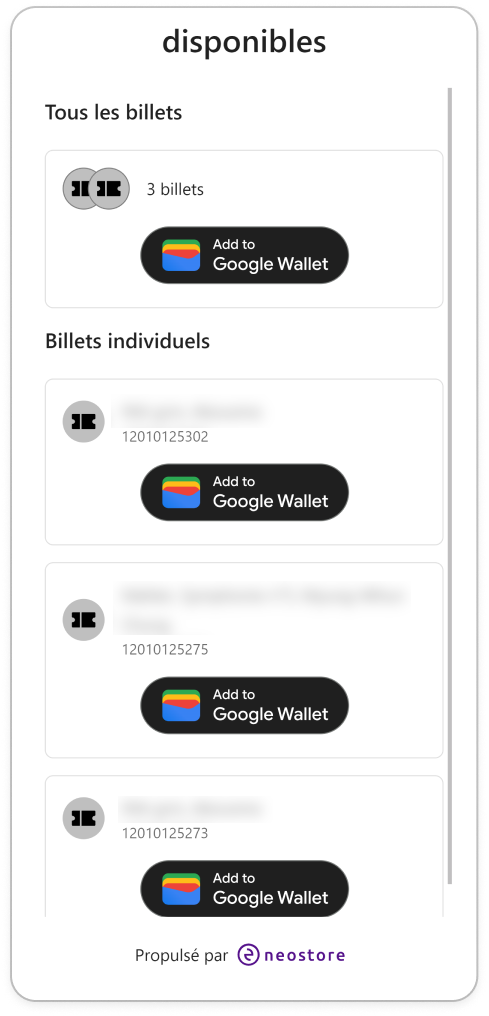
Hosted download page on Android showing the ticket list and Google Wallet button.
Hosted download page on Android.
Hosted download page on desktop showing the ticket list and QR code fallback.
Hosted download page on desktop.

URL template

Use this URL in Secutix confirmation emails. Replace <customdomain> and <tenantId> with the tenant values.

Layout requirement

The hosted page uses a layout named tickets. Create it in The Wallet Crew layouts.

Contact The Wallet Crew support for help configuring this layout.

“Add to Wallet” in the ticket shop

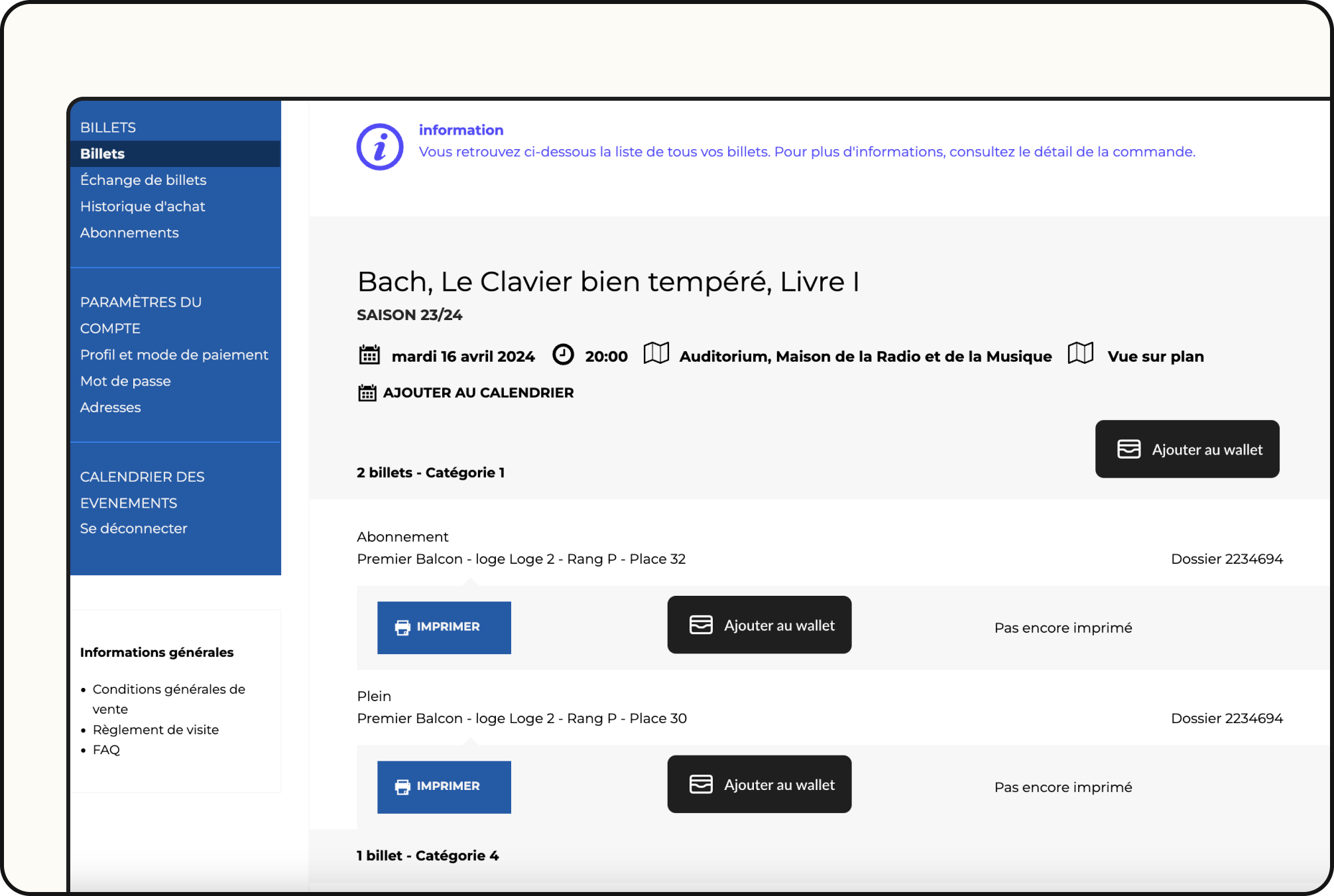
Use this when the CTA should appear directly in the ticket shop UI. This is the best flow for mobile buyers who want to save the ticket right away.

This integration is typically implemented by Secutix. Confirm it is included in the Secutix scope if it is not visible.

Add to Wallet button embedded in the Secutix ticket shop order confirmation page.
“Add to Wallet” button in the ticket shop.
Add the “Add to Wallet” button on an owned website

Use this when the page is under brand control. Typical examples are an account page, a “My tickets” page, or a post-purchase landing page.

The Wallet Crew SDK (cinto) renders the button and detects the device. It shows Apple Wallet on iOS and Google Wallet on Android. On desktop, it falls back to a QR code.

It follows Apple and Google button guidelines. It stays compatible through SDK updates. It supports localization based on the user language. It also protects distribution integrity.

Prerequisites

Before integrating the SDK, confirm three things. The Wallet Crew tenant has the right Event Ticket template(s). The Wallet Crew is connected to Secutix through the Secutix connector. The page where the button should render can be modified.

The Wallet Crew Secutix integration uses Secutix movementId to uniquely identify a ticket pass.

Script initialization

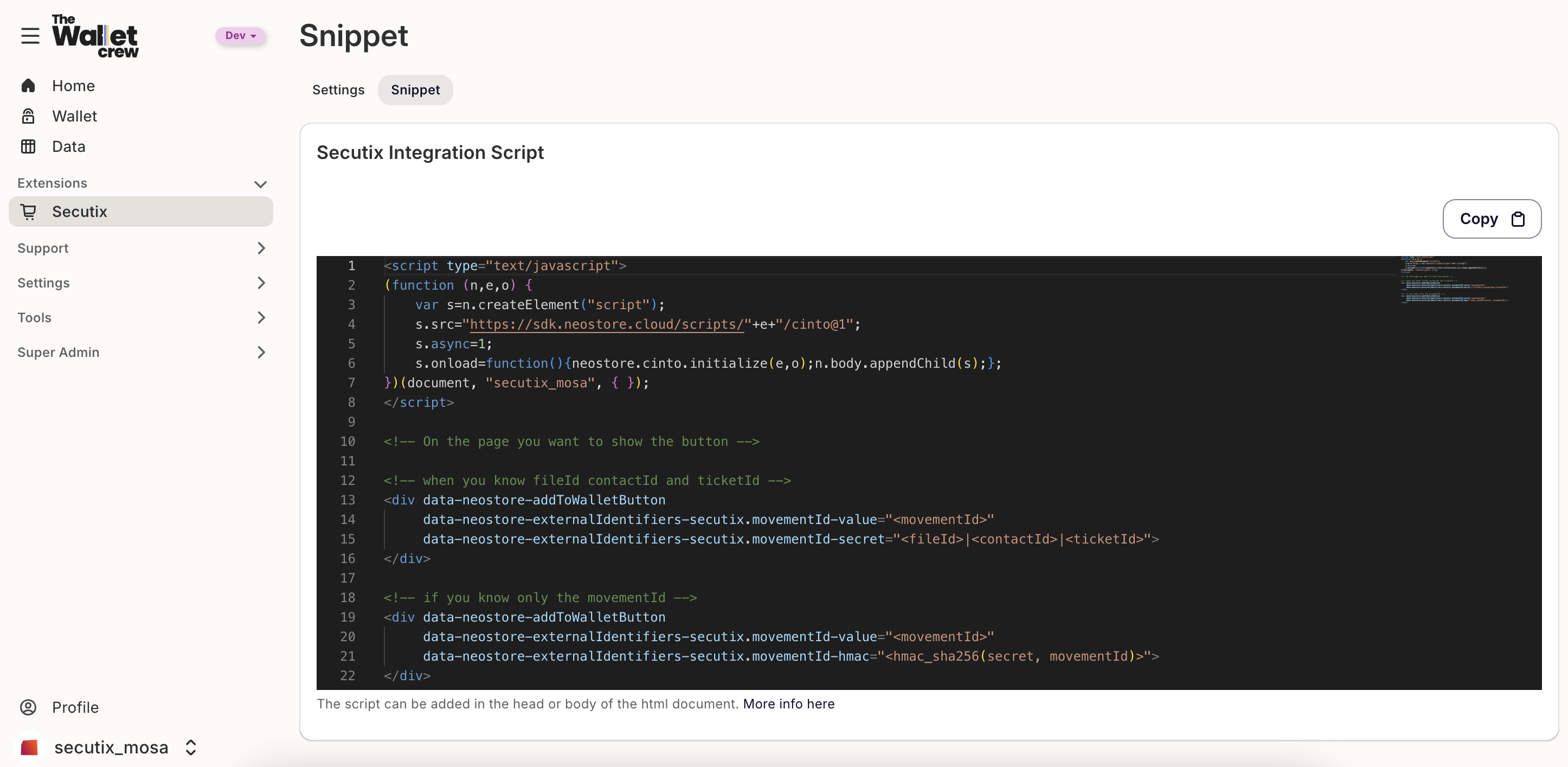
Copy the ready-to-use snippet from the Secutix integration settings in the admin console. Load it once per page, ideally in the page footer.

SDK snippet shown in the Secutix integration settings page.
SDK snippet available in the Secutix integration settings.

Replace {tenantId} with The Wallet Crew tenant ID.

Button examples

All options below render the same button. They only differ in how the button identifies the ticket.

Using movementId, fileId, contactId, and ticketId
Using HMAC calculation
Using passId only (resolved server-side)

Notes

Keep HMAC computation server-side. Never expose the signing secret in the browser.

When passId is needed, retrieve it server-side by querying existing passes using the Secutix movementId (this does not create a pass):

Pick the id from the response payload. That value is the passId to feed to the SDK. API reference: GET /api/{tenantId}/passes.

For the full website integration guide, see On your website.

FAQ

Why does the “Add to Wallet” button show the wrong platform (or only a QR code)?

The button selects Apple vs Google vs desktop from the user agent. Embedded browsers can make this detection wrong. “Request desktop site” also breaks detection.

Have the buyer open the page in the system browser. Use Safari on iOS. Use Chrome on Android. On desktop, the QR code is the expected fallback.

If it still does not work, a "need help" button is available, and buttons for Google Wallet and Apple Wallet are displayed.

A buyer has multiple tickets in one order. Can they add all tickets at once?

Yes. One hosted link can show every ticket in the order.

Buyers add tickets from the list. They do not need one link per ticket.

What happens when a ticket is exchanged, reprinted, or cancelled after it was added to the wallet?

Reprints and simple edits typically update the existing wallet pass automatically.

Exchanges or replacements usually generate a new ticket. The old pass is then deactivated. The buyer must add the new pass. Re-opening the hosted link is usually enough.

Cancellations deactivate the pass so it can’t be scanned.

For the full behavior matrix, see Updates, lifecycle, and installation status.

More information

To configure the pass content, go to Wallet pass template & field mapping.

To validate exchanges, cancellations, and refresh behavior, go to Updates, lifecycle, and installation status.

Last updated